CaptureX · macOS 14+
Scrolling screenshots on Mac
Capture a long page with manual or automatic scrolling. Learn selection, live preview, safe pauses and how to save the verified result in CaptureX.
How to use it
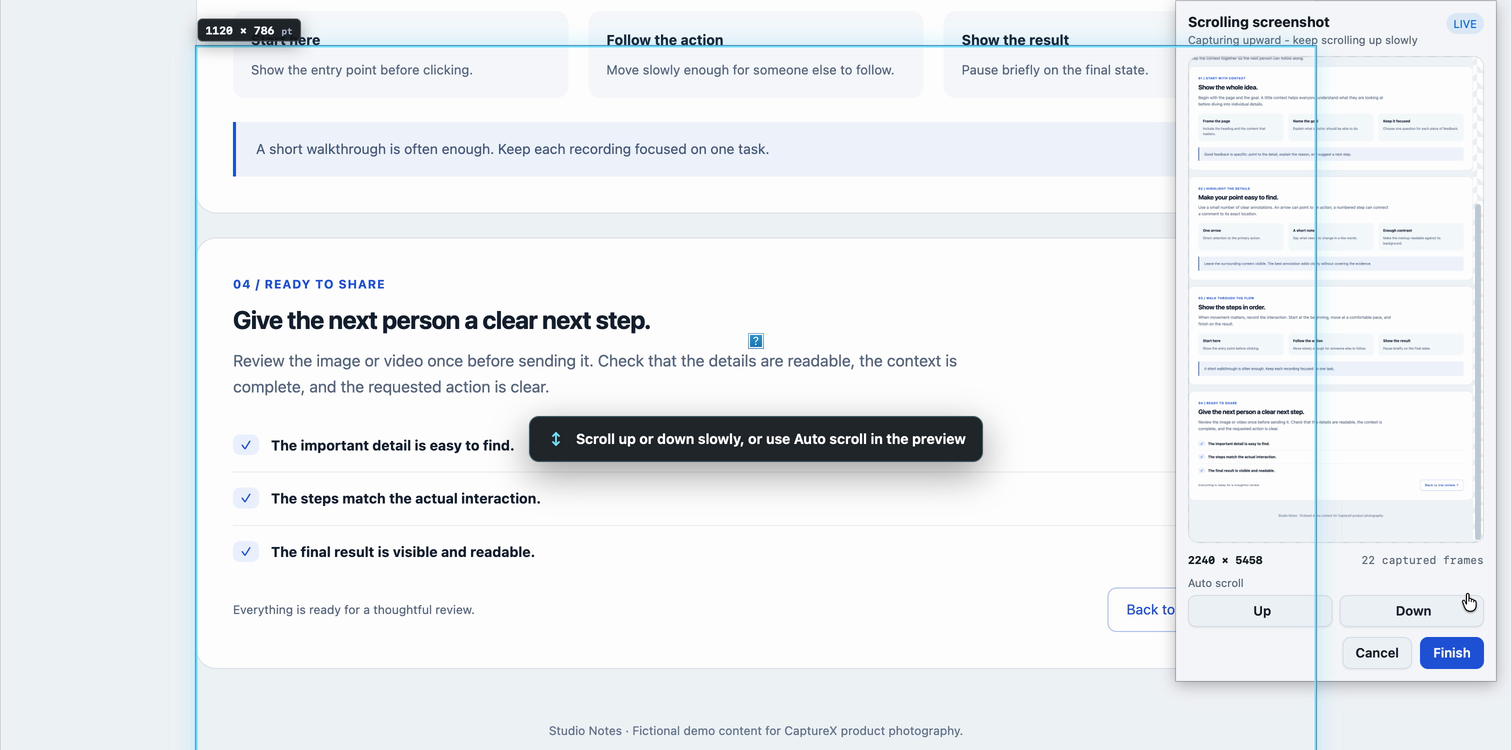
- Press Control + Shift + A and select the page’s scrollable content. Leave the target window visible and choose Scrolling capture from the screenshot toolbar.
- Scroll manually up or down, or start automatic scrolling. For automatic capture, keep the pointer inside the selected area and away from its controller.
- Check the growing preview beside your selection. You can reverse direction within the same session without adding already captured content twice.
- Choose Finish to open the stitched image in the screenshot editor. Review it, add annotations if needed, then explicitly copy or save.
System, permissions and privacy
Requires macOS 14+ and Screen Recording permission. Automatic scrolling also requires Accessibility permission; manual scrolling remains available without it.
Capture and matching run locally. The original screenshot stays unchanged; no page content, recognized text or file paths are uploaded.
Limits, cancellation and recovery
Unreliable matches pause capture instead of adding an uncertain frame. Keep the page still, restore a visible textured area and continue while checking the preview. Repeated patterns, animation and large layout changes can prevent a reliable stitch.
Automatic scrolling pauses when the pointer leaves the usable area or another window covers the target. Return to the target to continue. Cancel exits the scrolling session without committing an output; start again from a fresh selection if the page has changed.
Save and share
Finish produces an editable stitched image, not an automatic save. Copy uses the current SDR rendering; Export lets you choose a supported image format.
Review the full height before sharing. Failed or cancelled output keeps the editor available for retry; your source screenshot is preserved.
Related guides and updates
- Local OCR and screenshot translation on Mac
- Screen recording with audio and camera on Mac
- HDR screenshot annotations and formats on Mac
macOS 14+ · everything runs locally