CaptureX · macOS 14+
Screen recording with audio and camera on Mac
Record a Mac window or region with system audio, microphone and camera. Pause, retake, edit locally and export a reviewed video without changing the source tracks.
How to use it
- Press Control + Shift + A, then Tab to switch to recording. Select a region or window; click its width × height to set exact dimensions before starting.
- Open recording settings to choose system audio, microphone and camera. Check live levels and camera framing. Click Start recording or press Enter; the permission and device check runs before the countdown.
- Use the controller to pause, resume or stop. More lets you mark a good take or retake from the latest good point; the original segment is retained.
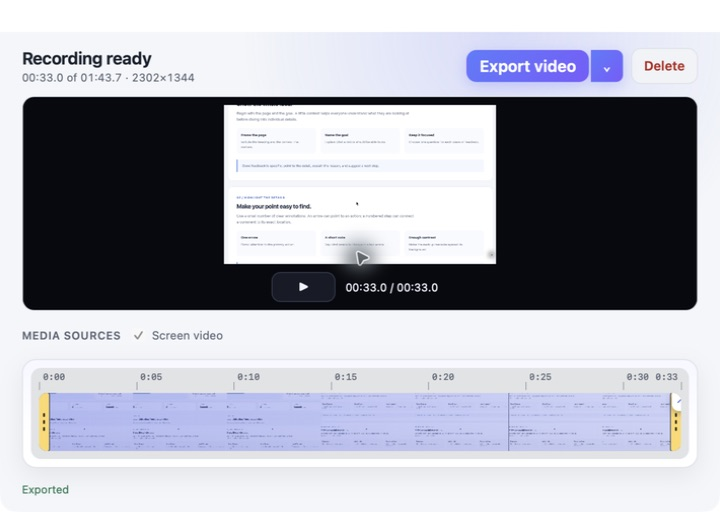
- After stopping, review the video editor. Trim, choose tracks, adjust camera and cursor effects, then choose Export video. The arrow menu also offers GIF and All source files.
System, permissions and privacy
Requires macOS 14+ and Screen Recording access. Microphone and camera permissions are needed when those sources are enabled. Missing or unavailable devices are shown before recording rather than silently replaced.
Optional shortcut badges require Input Monitoring permission. Only shortcut combinations, function keys and navigation keys are shown; ordinary typing and secure input are not recorded. Recording, audio processing and captions stay local.
Limits, cancellation and recovery
The recording status appears after the first frame is written. If a source, permission or storage fails, completed segments are kept; open Recovery from the main panel and retry recovery.
Cancel recording uses a confirmation. Retakes keep the original segments, and you can restore them in the editor. Failed or cancelled export keeps the project and existing files intact for retry.
Auto focus needs saved clicks; mouse following also needs saved pointer paths. Captions support Chinese or English only and need authorized, available offline recognition. Captions are limited to 2 hours and 2,048 entries; GIF is limited to 15 seconds.
Save and share
Preview and export use the same edit. Source screen, camera and audio tracks are preserved. Up to eight output versions can have different portrait or landscape framing.
Batch export commits a new folder only after all videos validate. For later delivery, drag a completed History output, use Quick Look to review it, or reveal it in Finder.
Related guides and updates
- Scrolling screenshots on Mac
- Local OCR and screenshot translation on Mac
- HDR screenshot annotations and formats on Mac
macOS 14+ · everything runs locally