Practical workflows · macOS 14+
Hide sensitive details in Mac screenshots
Find email addresses and phone numbers on your Mac, then cover any remaining details by hand.
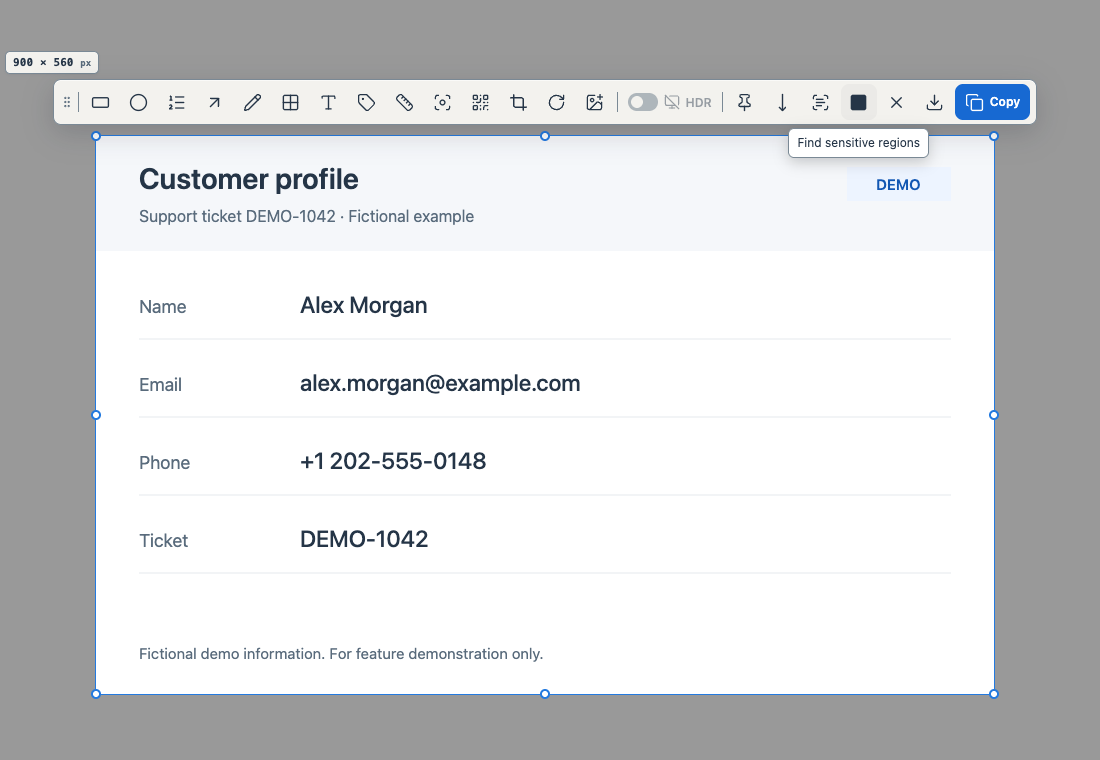
Find regions
- Capture an area with Control + Shift + A or your shortcut, or reopen an editable screenshot from History.
- Choose Find sensitive regions in the screenshot toolbar to start the local scan.
Review and apply
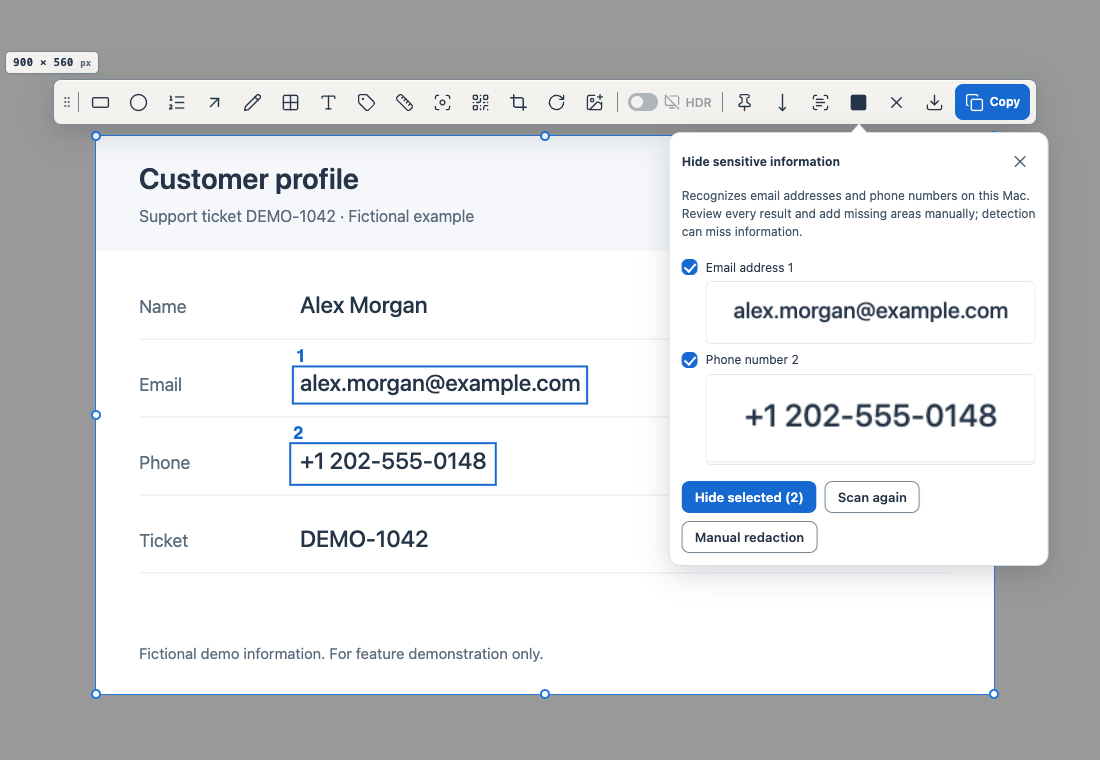
- Check the numbered regions and thumbnails. Clear anything that should remain visible.
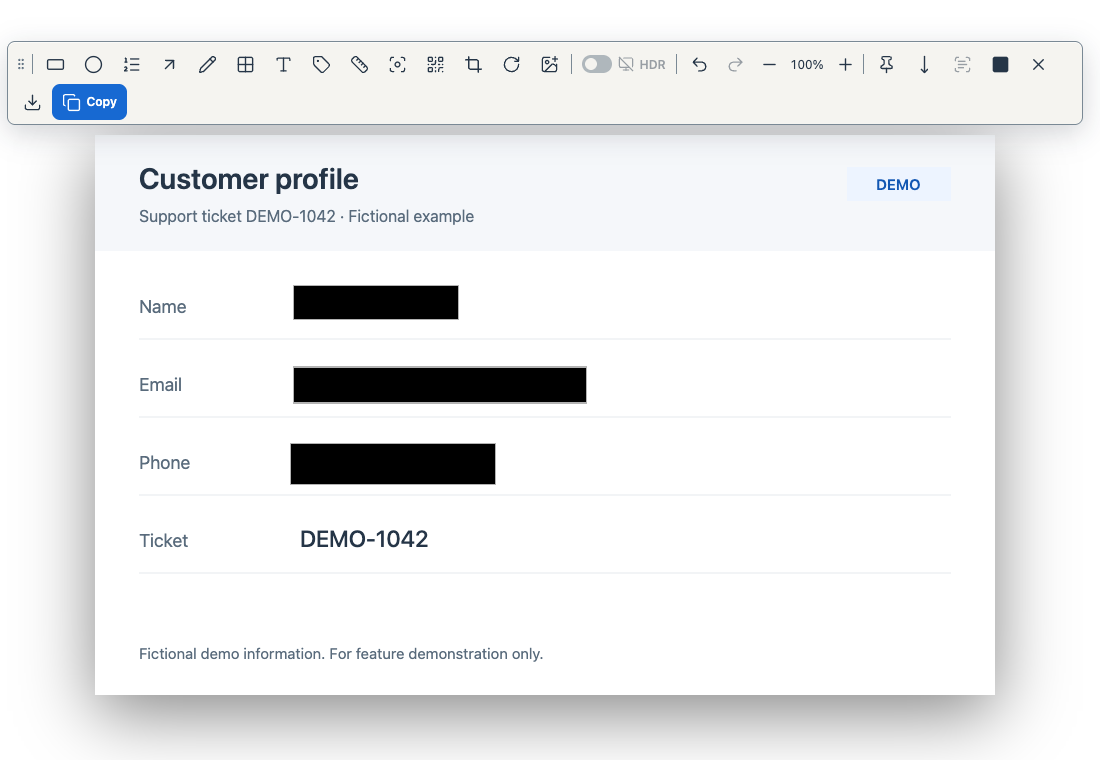
- Choose Hide selected to add opaque black covers. Command + Z undoes the batch.
Finish and share
- Use Manual redaction for names, addresses and missed regions.
- Choose Copy, or open Export, choose a format and export. Inspect the pasted image or saved file before sending.
- Recognition can miss details. Escape cancels; Scan again retries. Undo cropping or rotation if prompted.
- Source images and editable projects remain. Share the checked output image.
Related feature guides
macOS 14+ · everything runs locally