Tool comparisons · macOS 14+
Mac screenshots: built-in or CaptureX?
Use macOS for a quick image; try CaptureX when you regularly annotate, scroll or re-edit.
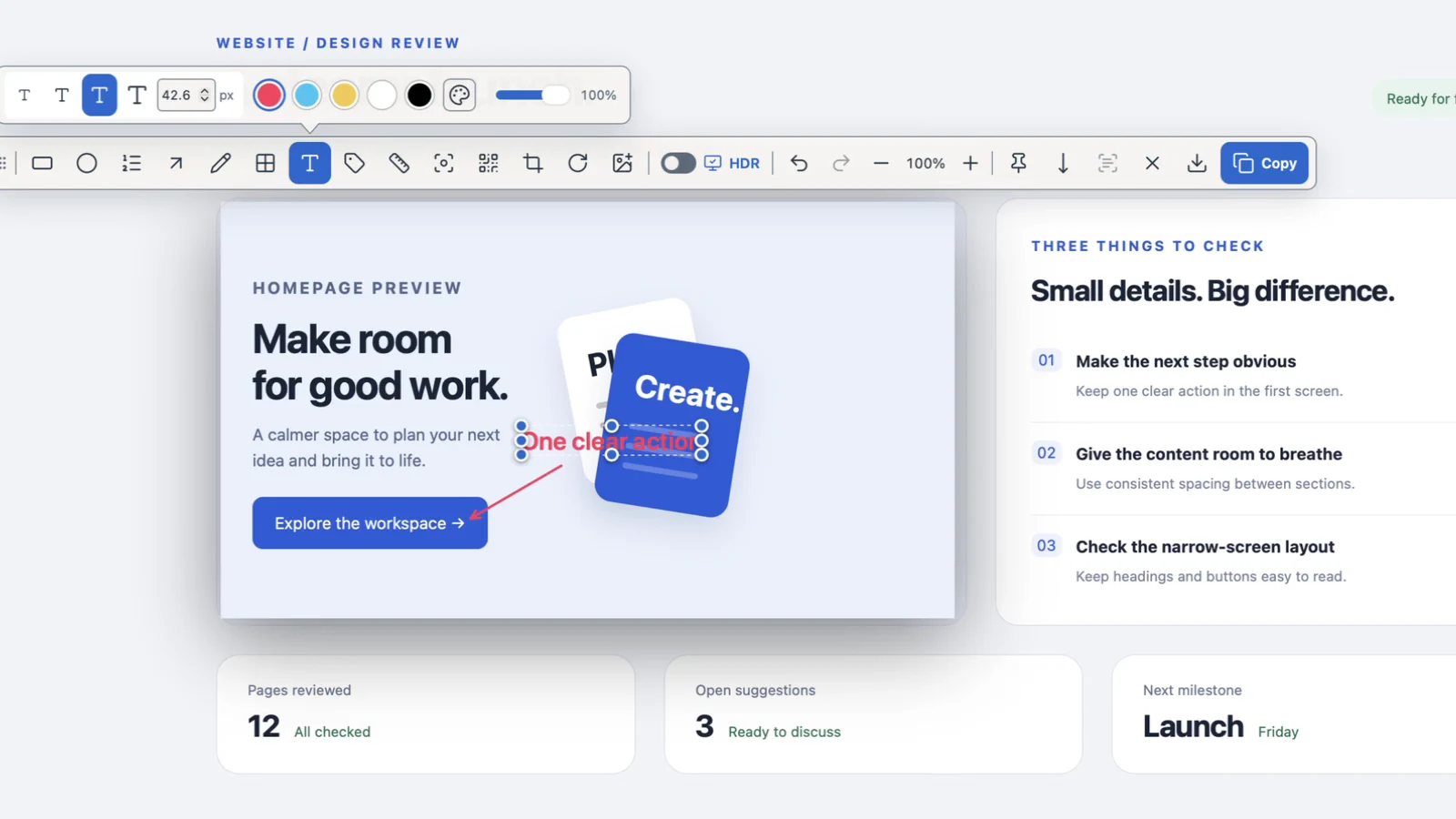
Region capture, arrow and text edits, then export settings in CaptureX’s English development UI, using fictional content. Silent; waiting time and the system save panel removed. Starts at 1.5× speed; adjust the speed in the video player.
Which should you choose?
We make CaptureX. For an occasional error screenshot or receipt, macOS is enough: Shift + Command + 4 captures an area; Shift + Command + 5 opens Screenshot. Use Markup for notes or Live Text in a supported app.
This comparison uses macOS 14 as its baseline. Apple sources checked October 15, 2026; recording, audio and HDR vary by OS version. No speed or image-quality benchmark.
Compare by task
| Task | macOS | CaptureX |
|---|---|---|
| Annotate | Capture + Markup | Arrows, text and opaque covers before copying |
| Long page | Source app’s export | Scrolling capture with a growing preview |
| Copy text | Live Text in supported apps | Local OCR from the selected area |
| Reuse images | Finder folders | Pin references; reopen editable History |
Try CaptureX
Capture needs Screen Recording permission; element selection and automatic scrolling also need Accessibility. Translation needs macOS 15+ and installed language packs.
- Press Control + Shift + A, then select an area.
- Extract text before annotating, covering, cropping or rotating; then add your notes.
- Choose Copy for SDR or Export for a file. Inspect the result; local History preserves editable sources.
Sources and further reading
Related feature guides
macOS 14+ · everything runs locally