Inside CaptureX · macOS 14+
Smart selection in CaptureX: windows, cards and table cells
Start with the content you want. CaptureX can snap the capture boundary to a window or a recognizable webpage element, then let you refine it before editing.
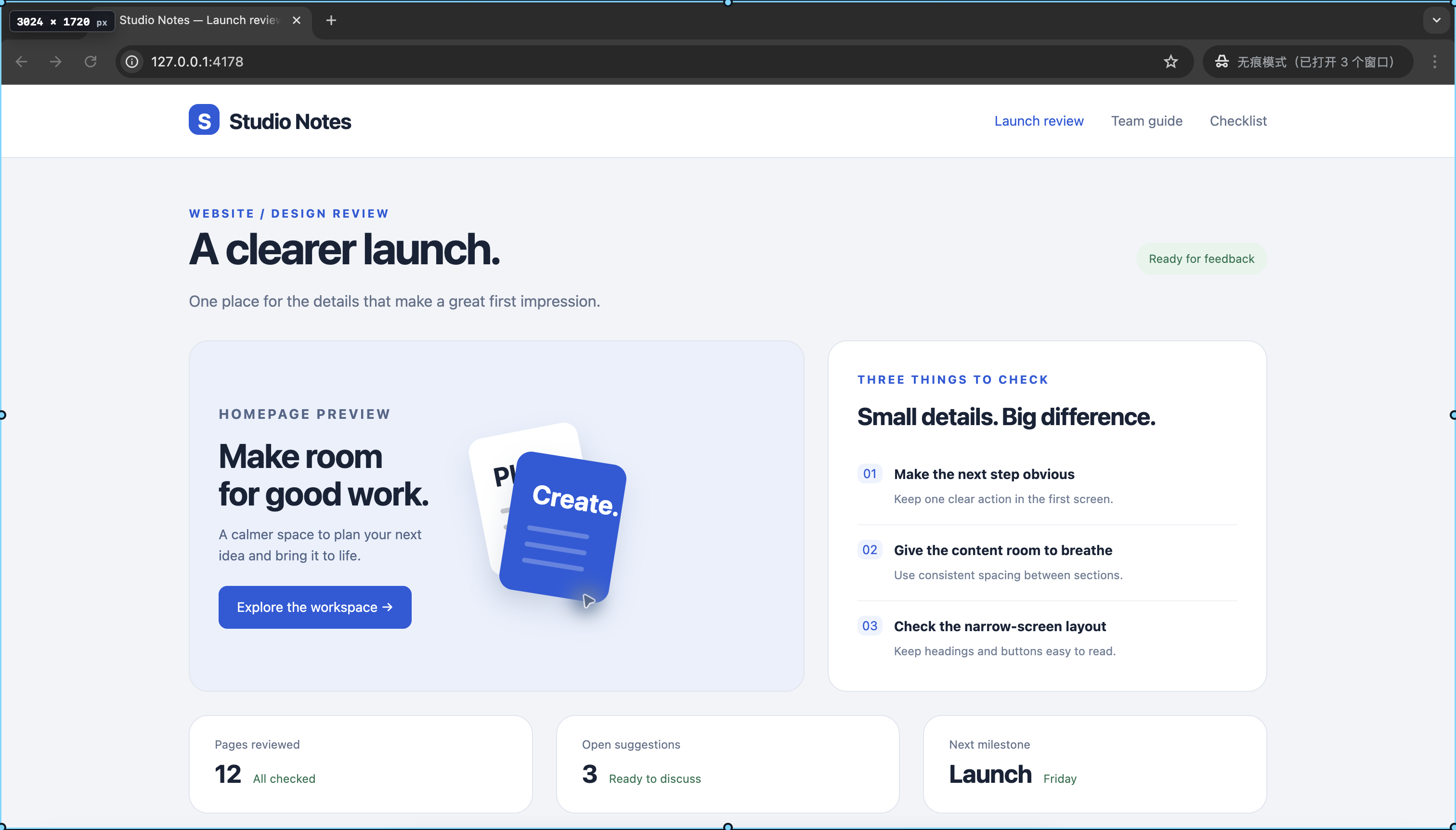
Select a window with one click
Use smart selection when a manually drawn rectangle would include neighboring windows or require several small adjustments.
- Press Control + Shift + A to open the unified selection layer.
- Point at the target window and click when the blue boundary snaps into place. The editor opens immediately; Enter or double-click is not required.
Frame webpage cards and table cells
- Move over a webpage card or table cell and click when its outline matches the content you want.
- For a multi-element range, hold Shift at the starting element, move to the endpoint, then click or press Enter. Release Shift before confirming to cancel the element preview.
- Tables can span rows, columns, headers and merged cells. Only the start and current endpoint define the range; elements passed along the way are not accumulated.
- Drag a free rectangle at any time. During an existing drag, holding Shift temporarily switches to element selection; releasing Shift restores the drag.
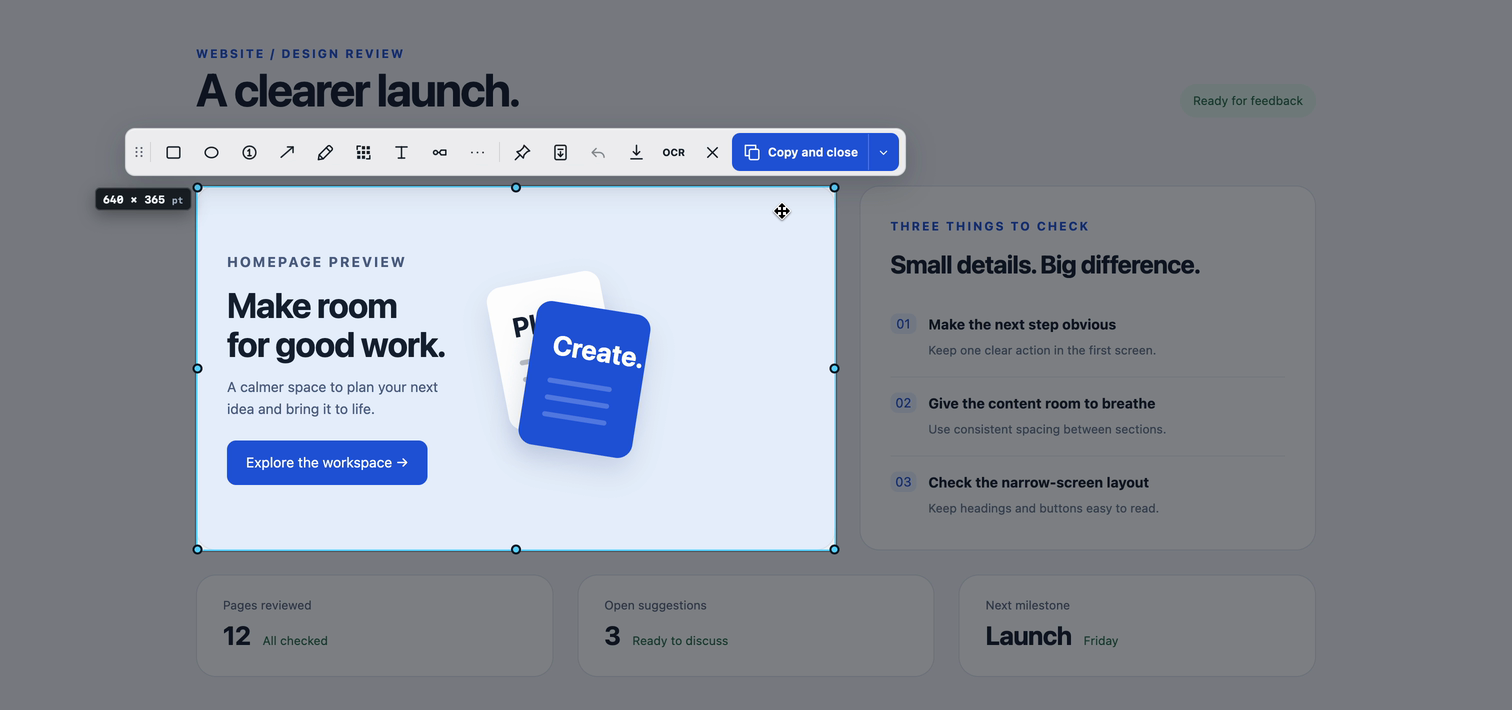
Adjust the boundary before editing
- Before drawing, typing, cropping or making another actual edit, drag any of the eight handles to refine the boundary.
- Click width × height to enter an exact size or reuse a common or recent size. Then choose Copy, or open Export and choose a format.
Permissions and fallback
- Screen & system audio permission is required for capture. Element selection additionally uses optional Accessibility permission; ordinary window and free-region capture remain available without it.
- Element geometry depends on what the target app exposes. If recognition is empty, invalid, fails or times out, CaptureX returns to free dragging instead of retaining a stale outline.
- Selection and recognition happen locally. Web content, recognized geometry and file paths are not uploaded.
Related feature guides
macOS 14+ · everything runs locally